Dialogue Engine
Welcome to the first devlog for Hollows Academy! In this devlog, I will talk about how I developed a custom-built dialogue engine designed specifically around JRPG-style interactions and branching narrative logic. This devlog dives into the architecture behind that system—how text rendering, player choice, event triggers, and quest integration all work together under the hood.
Overview
The dialogue in Hollows Academy is powered by a fully custom-built dialogue engine, developed from scratch to support a traditional JRPG-style dialogue system. The engine handles dialogue flow, branching logic, and gameplay integration, while the system presents conversations through a typewriter-style text effect with synchronized audio feedback. Together, they enable meaningful player choice during interactions, allowing dialogue decisions to trigger quests, alter progression, and unlock gameplay rewards. Without further ado, let's get right into this devlog!
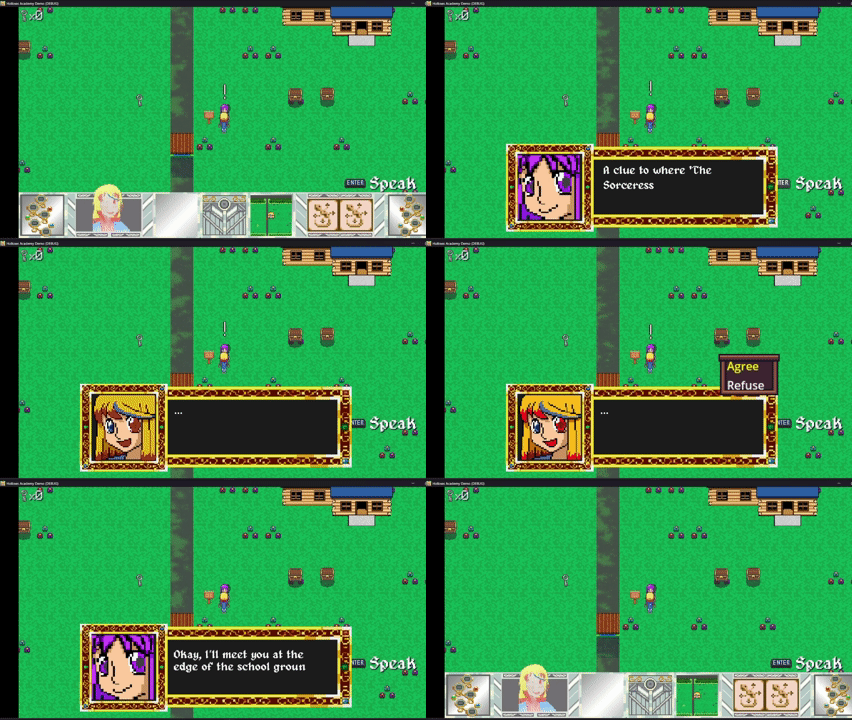
Part 0 - Starting a Conversation
First off, we have to discuss how to start a conversation. We need to implement the following:
- Preventing interaction spam using an interaction lock
- Ensuring a conversation isn't already running
- Load the dialogue lines into an active conversation
- Resetting the conversation indices
We do this through a method, StartConversation, which takes the parametres an Entity object (npc) and a DialogueConversation object (conversation).
                public void StartConversation(Entity npc, DialogueConversation conversation) {
                    if (interactionLocked) return;
                    if (isConversationActive) return;
                    if (conversation == null || conversation.Lines == null || conversation.Lines.Length == 0) return;

                    collidedBody = npc;

                    activeConversation = conversation.Lines;
                    conversationIndex = 0;
                    currentDialogue = "";
                    isConversationActive = true;
                    isTalking = true;
                    DrawDialogue();
                }
So this method prevents interaction spam using the interactionLocked variable, checks to make sure a conversation isn't already running, thus preventing a duplicate or overwritten conversation, loads the lines of dialogue into the activeConversation variable, which keeps track of what conversation is currently being drawn to the screen and resets the conversation index, which keeps track of how progressed the active dialogue conversation is. Finally, it calls DrawDialogue();, which is where the actual rendering begins.
Part 1 - Drawing a Dialogue Line
The dialogue in Hollows Academy is stored using custom resource files. I chose this approach because it
separates dialogue content from gameplay code, making conversations significantly easier to manage as the project
grows.
Rather than hardcoding dialogue directly into scripts, writers and designers can create or edit conversations
through resource files without needing to modify the dialogue engine itself. This keeps the dialogue system flexible
while also making it easier to maintain and expand throughout development.
Each DialogueLine resource contains the text that will be displayed, an optional speaker reference, a
collection of dialogue choices, and several flags used to control conversation flow. By storing this information in
a dedicated resource, the dialogue engine can remain generic while individual conversations define their own
behaviour.
The speaker reference is particularly useful because it allows the system to determine which NPC is currently
speaking. This means the same dialogue engine can support different characters without requiring special-case code
for every conversation. Likewise, the choices array enables branching conversations, allowing players to make
decisions such as accepting quests, declining requests, or selecting different responses during interactions.
                public partial class DialogueLine: Resource {
                    [Export] public NodePath speaker;
                    [Export(PropertyHint.MultilineText)] public string text;
                    [Export] public DialogueChoice[] choices;

                    [Export] public bool endConversation = false;

                    public Entity GetSpeaker(Node sceneRoot) {
                        if (speaker == null || speaker.IsEmpty)
                        return null;

                        return sceneRoot.GetNodeOrNull < Entity> (speaker);
                    }
                }
Once a conversation has been initialized, the dialogue engine needs to prepare the current line for display. This
responsibility belongs to the DrawDialogue() method, which acts as the bridge between the dialogue data
and the user interface.
The first step is retrieving the current dialogue line from the active conversation and applying any dialogue
variables that may need to be inserted dynamically:
                DialogueLine line = activeConversation[conversationIndex];
                currentDialogue = ApplyDialogueVars(line.text ?? "");
DrawDialogue() triggers any speaker animations that may be associated with the current dialogue
line and displays the dialogue interface while temporarily hiding the normal gameplay UI:
                dialogueBox.Visible = true;
                ui.Visible = false;
                wrappedLines = currentDialogue.Split('\n');
                pageIndex = 0;
ShowDialoguePage();
Part 2 - Paging System
Once a line of dialogue has been loaded, the next challenge is displaying it in a way that remains readable for the player. In many JRPGs, dialogue is presented in small chunks rather than displaying an entire paragraph at once. This helps maintain a clean interface, improves readability, and prevents large walls of text from overwhelming the player. To achieve this, the dialogue engine uses a paging system. Rather than attempting to display an entire conversation at once, dialogue is broken into smaller sections that fit comfortably within the dialogue box. Each page can then be displayed individually and advanced by player input.
Before any pages can be shown, the dialogue text must first be prepared. The dialogue is split into separate lines and the page index is reset so that the conversation begins at the first page:
                wrappedLines = currentDialogue.Split('\n');
                pageIndex = 0;
Once the dialogue has been prepared, the paging system can display the first page by calling:
ShowDialoguePage();
The ShowDialoguePage() method is responsible for determining which portion of the dialogue should be
visible to the player at any given moment. Rather than displaying every line at once, it calculates a range of lines
based on the current page index and the maximum number of lines that can fit inside the dialogue box.
                int start = pageIndex * maxLinesPerPage;
                int end = Math.Min(start + maxLinesPerPage, wrappedLines.Length);

                for (int i = start; i < end; i++)
                    pageText += wrappedLines[i] + "\n";

                dialogueText.VisibleCharacters = 0;
                charIndex = 0;
The calculation begins by determining the starting and ending positions of the current page. The starting line is
calculated using the page index, while the ending line is limited using Math.Min() to ensure the system
never attempts to read beyond the available dialogue.
Once the visible range has been determined, the dialogue text for that page is assembled line by line and stored in
a temporary string. This becomes the text that will be displayed inside the dialogue box.
Finally, the typewriter effect is reset by setting both VisibleCharacters and charIndex
back to zero. This ensures that each page begins its text animation from the beginning rather than continuing from
the previous page.
Although the paging system is relatively simple, it plays an important role in the overall presentation of dialogue. By limiting how much text appears at once, conversations remain easy to read regardless of their length, while the dialogue box itself can maintain a consistent size throughout the game. This approach allows the engine to support both short exchanges and lengthy story-driven conversations without requiring scrolling text or oversized UI elements.
Part 3 - Typewriter Effect
One of the goals for the dialogue engine was recreating the feel of classic JRPG conversations. Rather than displaying an entire line of dialogue instantly, Hollows Academy presents dialogue using a typewriter effect, where text appears character by character over time. This approach helps control the pacing of conversations while also making dialogue feel more dynamic and engaging. Instead of overwhelming the player with large blocks of text, information is delivered gradually, naturally drawing attention to what is being said.
The effect itself is driven by a timer. Each tick of the timer reveals one additional character by increasing both the number of visible characters and the current character index:
            dialogueText.VisibleCharacters++;
            charIndex++;
By revealing characters one at a time, the system creates the illusion that dialogue is actively being spoken rather than simply appearing on screen. The speed of the timer can also be adjusted to fine-tune the overall pacing of conversations.
To further reinforce this effect, a short sound effect is played as characters appear. Rather than using full voice acting, this provides lightweight audio feedback that gives each conversation a sense of life and personality:
            audioPlayer.Stream = talkSound;
            audioPlayer.Play();
This technique is commonly used in JRPGs and visual novels because it adds a layer of feedback without requiring extensive voice recording. For an independent project like Hollows Academy, it provides a practical way to make conversations feel more expressive while keeping production requirements manageable.
Once every character on the page has been revealed, the timer stops and waits for player input. At this point, the player can either advance to the next page of dialogue or continue to the next line of the conversation.
While relatively simple in implementation, the typewriter effect contributes significantly to the overall presentation of dialogue. Combined with the paging system, it helps conversations feel deliberate and readable while reinforcing the retro JRPG inspiration behind the game's interface design.
Part 4 - Advancing Dialogue
At this point, the dialogue engine can display dialogue, split it into pages, and animate text using the typewriter
effect. The next challenge is determining what should happen when the player presses the interaction key to continue
the conversation.
Rather than simply moving to the next line every time input is received, the dialogue engine uses an
AdvanceDialogue() method to evaluate the current state of the conversation and decide what action
should be taken. This method acts as the central control point for dialogue progression, ensuring that conversations
behave consistently regardless of their complexity.
The logic flow is relatively straightforward:
- If the current line is still being animated, instantly reveal the remaining text:
- If the current dialogue line is marked as the end of the conversation:
- If the current dialogue line contains player choices:
if (!isDialogueFinishedDrawing)
if (currentLine.endConversation)
if (currentLine.choices != null)
The first condition exists primarily as a quality-of-life feature. Players often read at different speeds, so allowing them to instantly reveal the rest of a dialogue page prevents the typewriter effect from becoming a source of frustration during repeated play sessions or longer conversations.
The second condition checks whether the current line has been designated as the end of the conversation. If so, the dialogue engine can begin its cleanup process and return control back to the player.
The third condition handles branching dialogue. If choices are present, the conversation temporarily pauses and presents the available options to the player. This allows dialogue to transition from a purely narrative system into a gameplay system capable of influencing quests, progression, and future interactions.
If none of these special conditions apply, the dialogue engine simply advances to the next page of text or proceeds to the next dialogue line. By routing all progression through a single method, the system remains predictable, easy to maintain, and flexible enough to support increasingly complex conversations as development continues.
Part 5 - Choice System
Up until this point, the dialogue engine has primarily focused on presenting information to the player. The choice system is where dialogue begins influencing gameplay directly. Rather than acting purely as a storytelling tool, conversations can now branch into different outcomes based on player decisions. This system allows dialogue choices to trigger quests, award items, recruit future party members, alter conversation flow, and eventually support more complex narrative interactions as development continues.
The choice system is managed through the ShowChoices() method, which takes an array of dialogue choices
and presents them to the player. The first step is enabling a dedicated choice selection mode:
isChoosing = true;
Once choice mode is active, the system dynamically generates the user interface for each available option. Rather than creating a fixed number of choice labels ahead of time, the engine creates them as needed based on the dialogue being displayed:
                Label label = new Label();
                label.Text = choice.text;
                choicesContainer.AddChild(label);
This approach keeps the system flexible, allowing conversations to contain any number of choices without requiring additional UI setup. Whether a conversation contains two options or ten, the same code can generate the appropriate interface automatically.
After displaying the available choices, the player needs a way to navigate the menu. This responsibility belongs to
the HandleChoiceInput() method, which listens for directional input and updates the currently selected
choice.
To provide visual feedback, the currently selected option is highlighted using color modulation. In this implementation, the active choice is displayed in yellow while all other choices remain white:
                selectedChoice = (selectedChoice + 1) % activeChoices.Length;
                label.Modulate = i == selectedChoice ? Colors.Yellow : Colors.White;
Highlighting the active selection may seem like a small detail, but it plays an important role in usability. Clear visual feedback helps players quickly identify which option is currently selected, making menu navigation feel responsive and intuitive.
Once the player confirms their selection, control is passed to the SelectChoice() method. This is where
dialogue choices begin interacting with other gameplay systems.
                if (choice.acceptsQuest)
                    collidedBody.AcceptQuest();
In this example, selecting a particular dialogue option can immediately trigger quest logic. This creates a direct connection between narrative interactions and gameplay progression, allowing conversations to serve as more than simple exposition.
Choices can also alter the flow of the conversation itself. By changing the conversation index, the engine can jump to a completely different dialogue line, enabling branching conversations and multiple dialogue outcomes:
conversationIndex = choice.nextLineIndex;
This branching structure forms the foundation for more complex dialogue trees. Different choices can lead to different responses, quest outcomes, or entirely different conversation paths depending on the needs of the interaction.
Ending a Conversation
Once a conversation has reached its conclusion, the dialogue engine must return control back to the player. This
process is handled by the ClearDialogue() method, which performs several cleanup tasks before gameplay
resumes.
The first step is restoring the normal user interface by hiding the dialogue box and re-enabling the overworld UI:
                dialogueBox.Visible = false;
                ui.Visible = true;
Next, the conversation state variables are reset to indicate that dialogue is no longer active:
                isTalking = false;
                isConversationActive = false;
Resetting these flags ensures that future conversations begin from a clean state and prevents any leftover dialogue data from interfering with subsequent interactions.
Finally, the dialogue engine emits a signal to notify other systems that the conversation has ended and briefly enables an interaction lock:
                EmitSignal(SignalName.ConversationEnded);
                interactionLocked = true;
The emitted signal allows other gameplay systems to react when a conversation finishes, while the interaction lock prevents the player from accidentally retriggering the same conversation immediately after closing it. This small quality-of-life feature helps interactions feel polished and prevents unintended input spam.
Together, the choice and cleanup systems transform the dialogue engine from a simple text presentation tool into a gameplay framework capable of supporting quests, branching narratives, progression systems, and future story-driven mechanics.
Part 6 - Final Notes
At a high level, the entire dialogue engine is built around a simple but effective loop:
- Start a Conversation
- Draw a Line of Dialogue
- Animate the Text with a Typewriter Effect
- Wait for Input
- Advance, Branch or End Dialogue
While the overall flow is relatively straightforward, separating each responsibility into its own system helps keep the dialogue engine maintainable and easy to expand. Conversation management, dialogue rendering, paging, player input, and choice handling all operate independently while working together to create a cohesive experience.
Because of this modular design, the system is already well-positioned to support future features such as:
- Portrait Systems for Speaking Characters
- Unique Voice Variations for Different NPCs
- More Complex Branching Dialogue Trees
- Relationship and Affinity Systems
- Additional Quest and Event Integration
Building this dialogue engine was one of the first major technical milestones for Hollows Academy. Although players may only see a dialogue box on screen, the system itself acts as a bridge between storytelling and gameplay. Conversations can introduce quests, provide worldbuilding, develop characters, and eventually influence progression throughout the game.
Developing the engine from scratch also provided a strong foundation for future systems. By designing it with flexibility in mind from the beginning, I can continue expanding the narrative side of the game without needing to constantly rewrite core functionality.
With this framework now in place, Hollows Academy has a robust dialogue system capable of supporting increasingly complex interactions as development continues. Future devlogs will take a look at other systems currently powering the game and the challenges involved in bringing them to life.
Thank you for reading the first development log for Hollows Academy. I hope this behind-the-scenes look at the dialogue engine was both informative and interesting. I'll see you all in the next devlog. Adieu!